

Working with WordPress often involves experimentation. Installing new themes, testing plugins, adjusting layouts, or fixing errors. Doing all of this on a live website can be risky, especially for beginners, agencies, and teams responsible for client projects.
That is where a local setup becomes essential.
Learning how to setup a local WordPress development environment allows you to run WordPress on your own computer, completely separate from a live server. You can build and test websites in a private space, make mistakes without consequences, and refine everything before it goes public.
This guide is designed for tech beginners, agencies, IT decision-makers, and general tech readers who want a clear and reliable way to work with WordPress locally. It walks through what a local environment is, why it matters, the tools you can use, and step-by-step methods to get WordPress running on your machine.

What Is a Local WordPress Development Environment
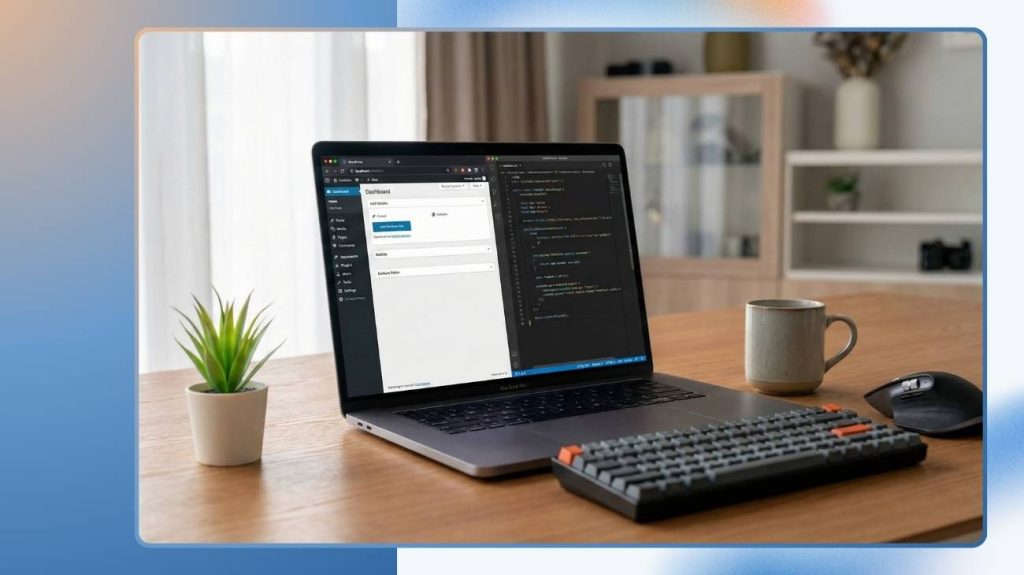
A local WordPress development environment is a setup that allows you to run WordPress on your own computer instead of on a live web server. In simple terms, it lets you build, test, and modify a WordPress website offline or on your local machine before anyone else sees it.
This approach is widely used by beginners, developers, and agencies because it provides a safe and controlled space to work on a website without affecting a live site or real users.
How local development works
When you set up WordPress locally, your computer acts like a web server. A local development tool installs and configures the core components WordPress needs to run, such as:
- A web server (Apache or Nginx)
- A database (usually MySQL)
- PHP (the language WordPress is built on)
These components work together in the background, allowing you to open a browser, visit a local address like localhost, and interact with WordPress exactly as you would on a live website.
From the WordPress dashboard, you can install themes, add plugins, create pages, and adjust settings. The difference is that everything happens locally, not on the internet.
Local WordPress vs live WordPress sites
The main difference between a local WordPress site and a live WordPress site is visibility and risk.
A local WordPress site:
- Is only accessible on your computer
- Does not require a domain name or hosting
- Is ideal for learning, testing, and development
- Can be broken, reset, or rebuilt without consequences
A live WordPress site:
- Is accessible to the public
- Requires web hosting and a domain
- Must be stable and secure at all times
- Carries risk when changes are made directly
For tech beginners, a local environment removes the fear of making mistakes. For agencies and IT decision-makers, it provides a reliable workflow for building and reviewing sites before deployment.
In short, learning how to setup a local WordPress development environment gives you full control over your development process and creates a strong foundation for working with WordPress professionally.
Why You Should Use a Local WordPress Environment
Understanding how to setup a local WordPress development environment is important, but knowing why you should use one is what makes it truly valuable. A local environment changes how you build, test, and manage WordPress websites, especially when reliability and efficiency matter.
Faster development and testing
Working on a local WordPress site is significantly faster than working on a live server. Pages load instantly because everything runs on your own machine. You can refresh, test changes, and debug issues without waiting on hosting performance or network speed.
This speed makes it easier to:
- Experiment with themes and plugins
- Test custom code safely
- Make frequent changes without hesitation
For beginners, faster feedback helps learning. For agencies, it means projects move forward without unnecessary delays.
No risk to live websites
One of the biggest risks in WordPress development is making changes directly on a live site. A single plugin conflict or configuration error can break the entire website.
A local WordPress environment eliminates this risk. You can:
- Test updates before applying them live
- Try new plugins without fear
- Break things and fix them without pressure
This approach is especially important for IT decision-makers who want predictable, low-risk workflows.
Ideal use cases for beginners and agencies
A local WordPress setup works well for different skill levels and business needs.
For tech beginners, it provides:
- A safe place to learn WordPress basics
- Hands-on practice without hosting costs
- Confidence to explore and experiment
For agencies and professionals, it supports:
- Client site development before launch
- Internal reviews and approvals
- Standardized development workflows
By using a local setup, teams can maintain quality control and reduce errors before a site goes live.
Overall, using a local environment is not just a technical preference. It is a practical decision that improves stability, efficiency, and confidence when working with WordPress.
What You Need Before Setting Up WordPress Locally
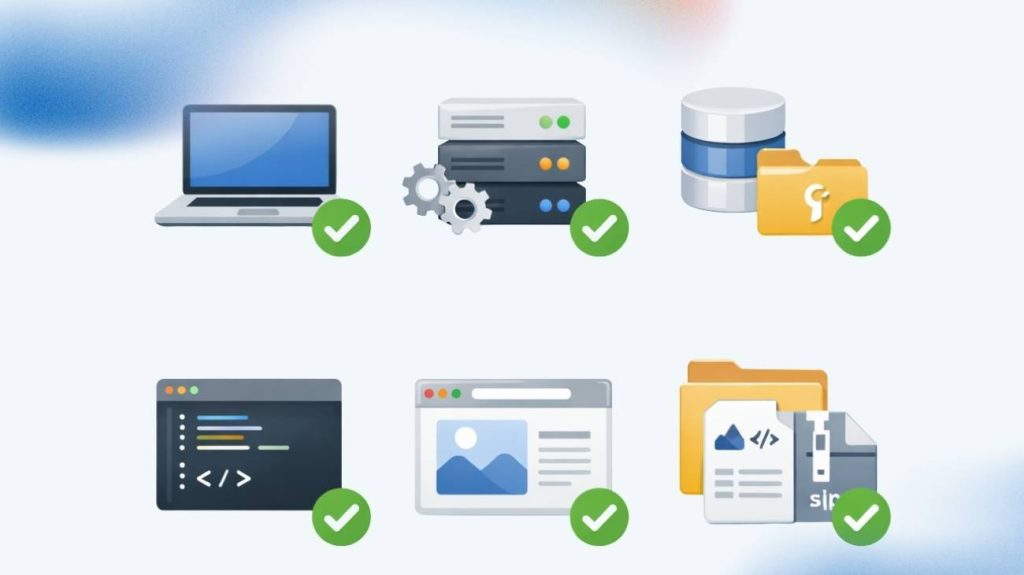
Before learning how to setup a local WordPress development environment, it helps to understand what is required. The good news is that the requirements are minimal and beginner-friendly.
System requirements (Windows, macOS, Linux)
A local WordPress environment works on all major operating systems. You only need:
- A computer with at least 4 GB RAM (8 GB recommended)
- Enough free disk space (5–10 GB is more than enough)
- Administrative access to install software
WordPress itself is lightweight. Most of the resources are used by the local server software, not WordPress.
Basic tools and skills required
No advanced technical skills are required. You should be comfortable with:
- Installing desktop applications
- Using a web browser
- Basic file navigation on your computer
Coding knowledge is optional. Many beginners successfully run WordPress locally without writing a single line of code.
Best Tools to Setup a Local WordPress Development Environment
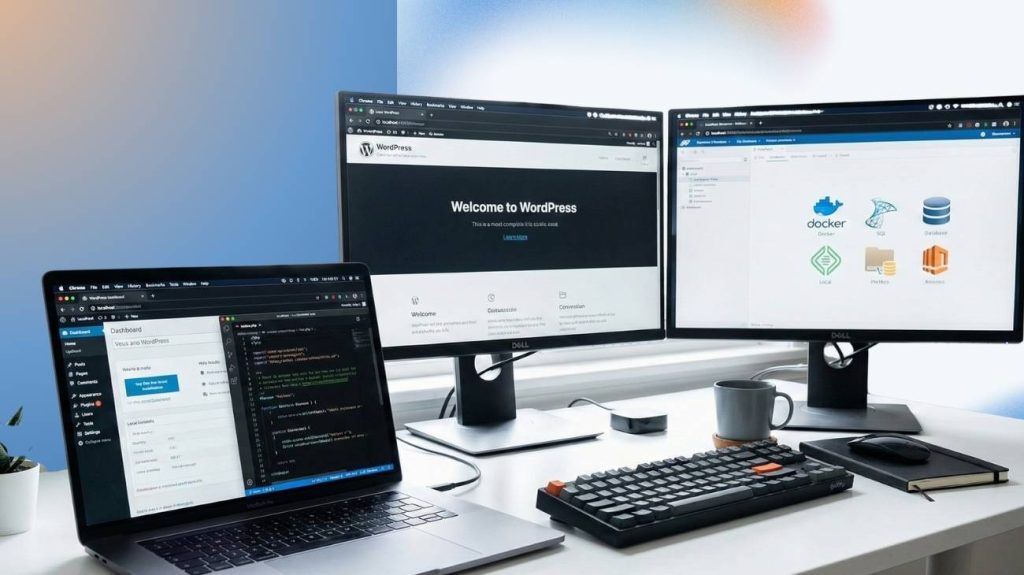
Several tools make it easy to set up WordPress locally. Each has its own strengths, depending on your experience level and use case.
Local WP (Local by Flywheel)
Local WP is one of the easiest tools for beginners. It automates almost everything.
Best for:
- Beginners
- Designers
- Agencies working on multiple sites
Pros:
- One-click WordPress installation
- Clean interface
- Built-in SSL and email testing
Cons:
- Less flexible for advanced server customization
XAMPP
XAMPP is a traditional local server stack that gives you full control.
Best for:
- Learners who want to understand how WordPress works
- Developers who prefer manual setup
Pros:
- Works on all operating systems
- Highly configurable
- Useful beyond WordPress
Cons:
- Manual WordPress installation required
Steeper learning curve for beginners
MAMP
MAMP is popular among macOS users but also supports Windows.
Best for:
- macOS users
- Developers who want a balance of control and simplicity
Pros:
- Stable and reliable
- Easy setup
Cons:
- Some features require the paid version
DevKinsta
DevKinsta is built for WordPress professionals.
Best for:
- Agencies
- Teams working with Kinsta hosting
Pros:
- Modern interface
- Docker-based environment
Cons:
- Overkill for beginners
How to Setup a Local WordPress Development Environment Using Local WP
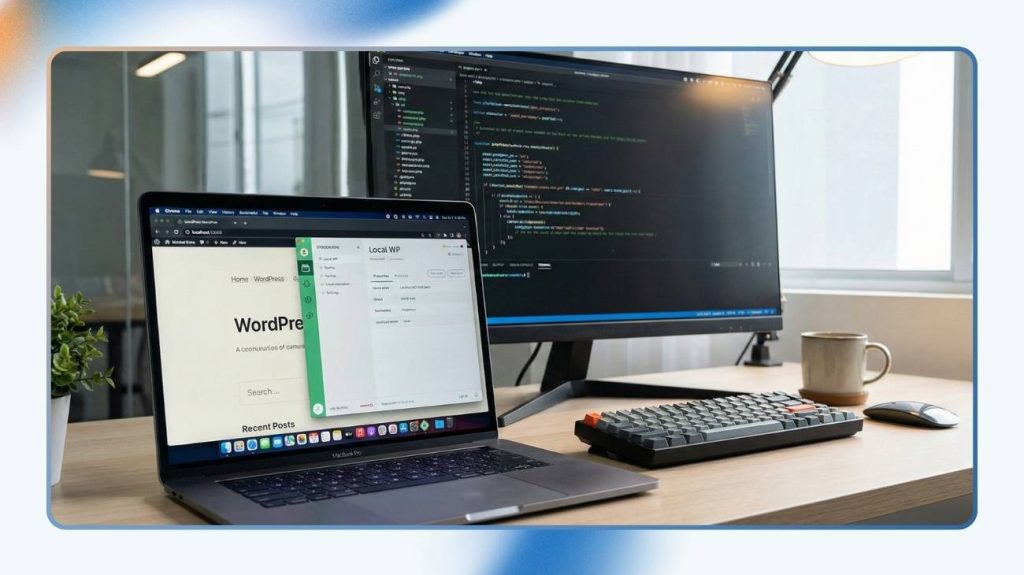
This is the easiest method for beginners.
Installing Local WP
Download Local WP from its official website and install it like any other desktop application. The setup wizard guides you through the process.
Creating a new WordPress site
After installation:
- Click “Create a new site”
- Choose a site name
- Select preferred PHP and server settings (default is fine)
- Enter WordPress admin credentials
Local WP handles the rest automatically.
Understanding the local dashboard
From the dashboard, you can:
- Start or stop your site
- Open the WordPress admin panel
- Access site files
- Enable SSL
This simplicity is why many beginners prefer Local WP when learning how to setup a local WordPress development environment.
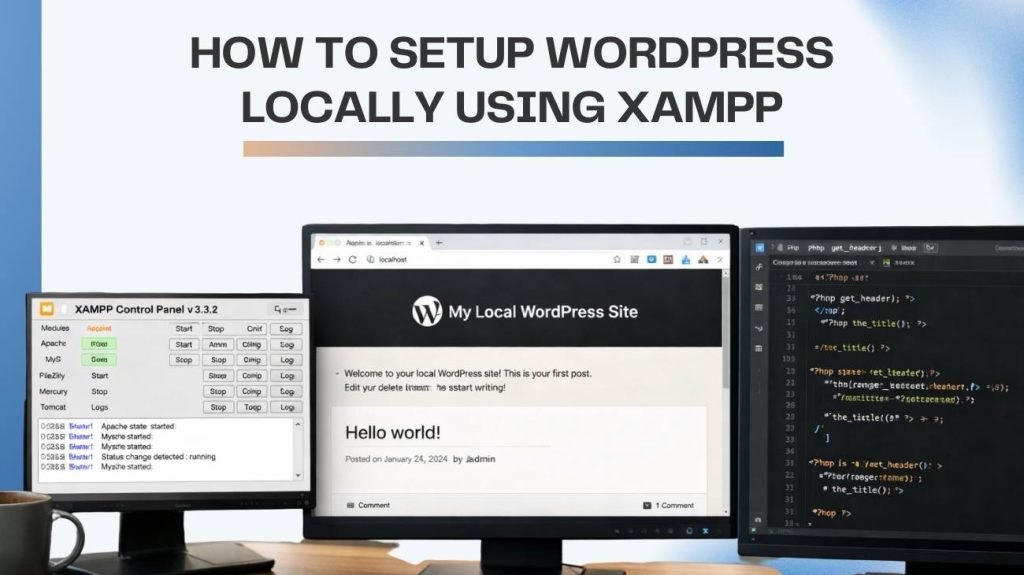
How to Setup WordPress Locally Using XAMPP
XAMPP requires more steps but offers deeper understanding.
Installing XAMPP
Download XAMPP and install it. Start Apache and MySQL from the control panel.
Creating a database with phpMyAdmin
- Open localhost/phpmyadmin
- Create a new database
- Note the database name
Installing WordPress manually
- Download WordPress
- Extract it into the htdocs folder
- Visit localhost/your-folder-name
- Enter database details when prompted
Common beginner mistakes to avoid
- Forgetting to start Apache or MySQL
- Using incorrect database credentials
- Installing WordPress in the wrong directory
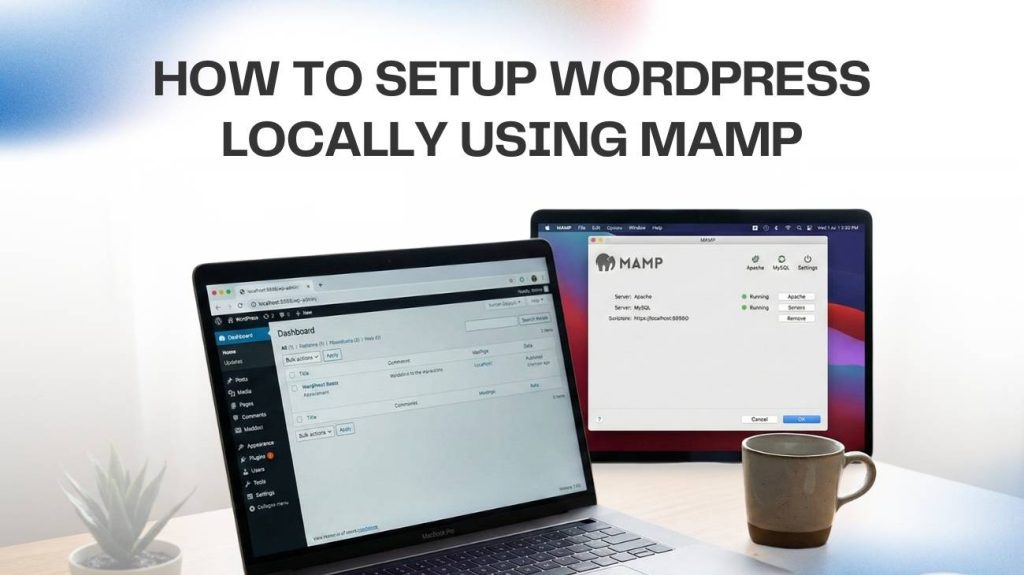
How to Setup WordPress Locally Using MAMP
MAMP simplifies some of the manual steps.
MAMP installation
Install MAMP and start the servers.
WordPress setup process
Place WordPress files in the MAMP htdocs directory, create a database, and complete the installation through your browser.
When MAMP is a better choice
MAMP is a good option if you want:
- More control than Local WP
- Less complexity than XAMPP
Accessing and Managing Your Local WordPress Site
Once installed, managing a local WordPress site feels the same as managing a live one.
Logging into wp-admin
Visit:
localhost/yoursite/wp-admin
Use the credentials you set during installation.
File structure overview
Key folders include:
- wp-content (themes, plugins, uploads)
- wp-config.php (core configuration)
Database basics for beginners
Your content, settings, and users are stored in the database. Tools like phpMyAdmin let you view and manage this data if needed.
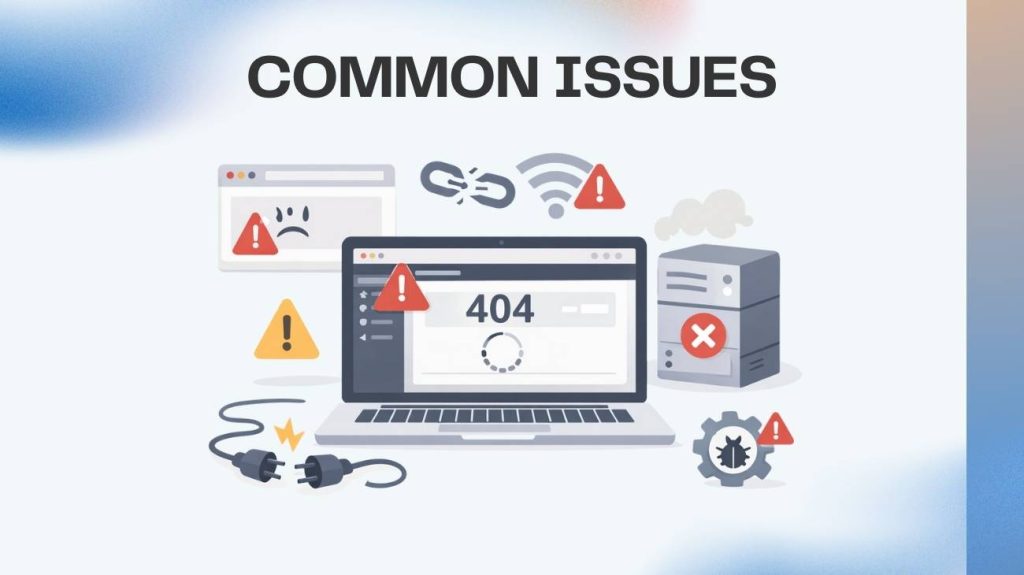
Common Issues When Setting Up WordPress Locally (And Fixes)
Port conflicts
If Apache fails to start, another application may be using the same port. Changing the port or stopping the conflicting app usually fixes this.
Database connection errors
These are often caused by:
- Incorrect database name
- Wrong username or password
Double-check your configuration file.
Site not loading properly
Restarting the local server and clearing browser cache solves many loading issues.
When to Move from Local to Live WordPress
A local site is not meant to stay local forever.
Signs your site is ready
- Design and content are finalized
- Plugins and themes are tested
- No critical errors remain
Migration options overview
You can migrate using:
- WordPress migration plugins
- Manual file and database transfer
- Hosting provider tools
Agencies often test migrations locally before final deployment.
Local WordPress Setup Best Practices
Version control basics
Using Git helps track changes and collaborate with teams.
Keeping local sites organized
Name projects clearly and archive unused sites to avoid clutter.
Security considerations even in local setups
Even local sites should:
- Use strong admin passwords
- Avoid nulled themes or plugins
Good habits carry over to live environments.
Summary
Learning how to setup a local WordPress development environment gives you control, safety, and confidence. Whether you are a beginner experimenting with WordPress or an agency building client websites, a local setup improves your workflow and reduces risk.
If you want expert help with WordPress development, performance optimization, or deployment strategies, starlitdevs.com can support you at every stage.
Need help building or managing WordPress projects? Get in touch with StarlitDevs for reliable WordPress development and support.
FAQs About Local WordPress Development
Is local WordPress safe to use?
Yes. A local WordPress site runs only on your computer and is not accessible from the internet. This makes it a safe environment for testing themes, plugins, and updates without exposing your site to security risks.
Do I need an internet connection to run WordPress locally?
An internet connection is only required to download the local development tool, WordPress files, themes, or plugins. Once installed, you can work on your local WordPress site completely offline.
Which local WordPress tool is best for beginners?
For most beginners, Local WP is the easiest option. It handles server configuration automatically and allows you to create a WordPress site with just a few clicks, without manual database setup.
Can I use a local WordPress site for client projects?
Yes. Many agencies and freelancers build and review client websites in a local environment before launching them on a live server. This helps reduce errors and improves quality control.
Will a local WordPress site affect my live website?
No. A local site is completely separate from any live website. Changes made locally do not impact production sites unless you intentionally migrate them.
Can I move my local WordPress site to live hosting later?
Yes. You can migrate a local WordPress site to a live server using migration plugins, manual file and database transfer, or hosting provider tools.
Is local WordPress good for learning development?
Absolutely. Local environments are widely recommended for learning WordPress because they allow experimentation without risk, making them ideal for beginners and aspiring developers.

Founding Starlit Devs has allowed us to extend our expertise globally, serving over 500 clients, including Fortune 1000 companies, with custom web development services. Our commitment to delivering exceptional design and development is coupled with a deep understanding of SEO, which has been pivotal in empowering businesses to achieve maximum online engagement and brand growth. At Starlit Devs, we take pride in our mission to provide websites that stand out in a competitive digital landscape and drive tangible results for our clients.
- Mahfuz M
