
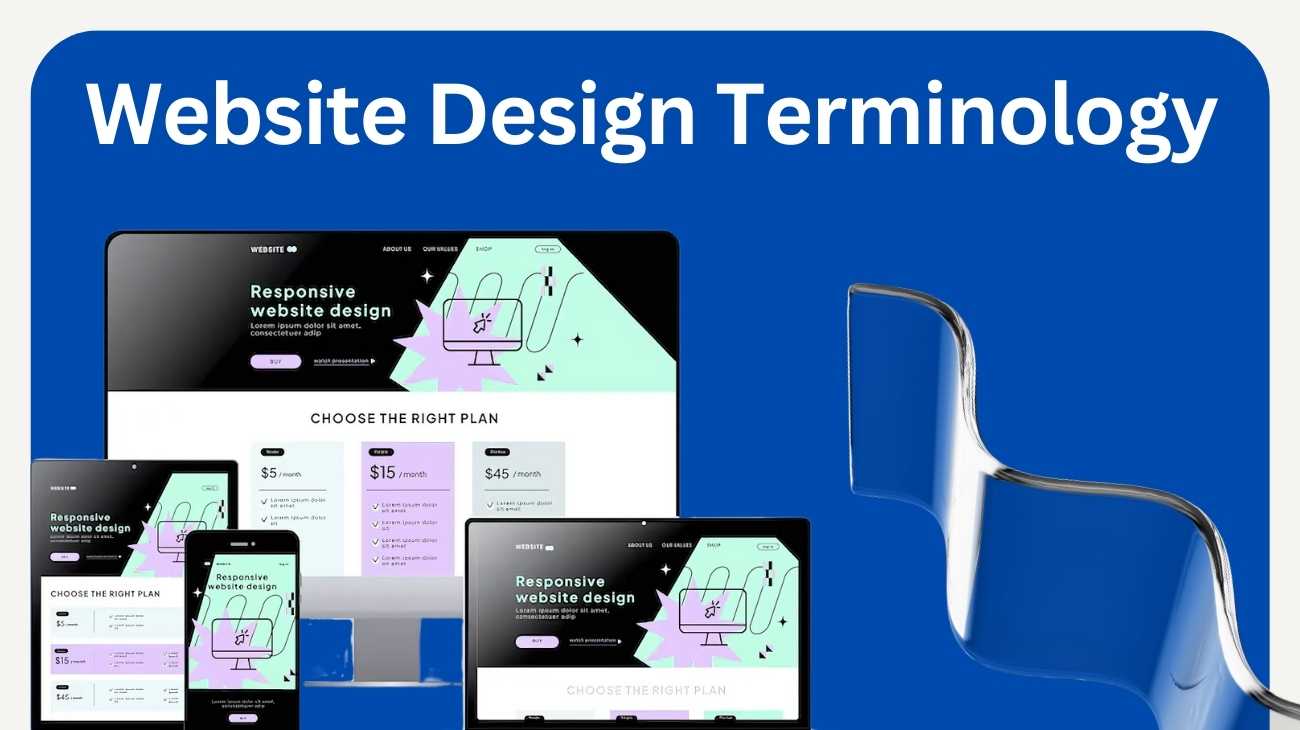
Ever hear your designer mention “wireframes,” “UX,” or “hero sections” and wonder what they actually mean? That is where understanding website design terminology becomes important. It is the shared language through which business owners and clients will be able to communicate clearly with their respective design teams.
In this guide, you’ll find easy explanations of the most common website design terms, from layout basics through hosting to SEO. By the end, you will feel more confident discussing your next project and the decisions you will make that truly align with your brand’s vision.
Why Understanding Website Design Terminology Matters
When building or redesigning a website, it’s easy to get lost in terms like “wireframe,” “UX,” or “responsive design.” Understanding basic website design terminology bridges that gap and makes collaboration smoother with your web design and development team.
It’s not about becoming a designer; rather, it’s about speaking the same language as your web team. Knowing the terms empowers you to make quicker decisions, avoid confusion, and end up with a site that truly matches your vision.
In short, learning a little web design lingo saves you time, money, and frustration, while gaining you more respect in discussions with your web team.
Key Website Design Terminology You Should Know
Let’s break down some of the most common website design terminology you’ll hear when working with a designer or developer. Knowing what these words mean helps you to better visualize your project and communicate what you really want, sans back-and-forth confusion.
Design & Layout Terms
1. Layout
The structure or arrangement of content on a webpage – such as where your header, images, and text appear. Just think of it as the blueprint for your website.
2. Grid System
A designer uses an invisible framework of rows and columns to align elements in a consistent way. It ensures that your pages are balanced and professional.
3. White Space - or Negative Space
Space between elements on the page. Not wasted space, giving room for content to breathe and be more readable.
4. Hero Section
The large banner or image you typically see at the top of a homepage. It’s designed to grab attention and set the tone for your brand.
5. Above the Fold
The part of your website that is viewable without scrolling. This is the prime real estate for your key messages and calls to action.
6. Wireframe
A basic drawing or digital outline that shows the layout of a webpage without any visuals or text added. It is essentially like your site’s floor plan.
7. Mockup
A more detailed version of a wireframe, this includes colors, typography, and images to give the look of what your final design will be.
8. Responsive Design
A design approach that ensures your website looks great and works properly on all devices: desktop, tablet, and mobile.
9. Typography
The style, size, and arrangement of text on your site. Good typography improves readability and creates visual harmony.
10. Color Palette
The combination of colors selected to use on your website. It affects user emotion, brand identity, and consistency in design.
Development Terms
Now that you understand the visual side of design, let’s look at the technical terms you’ll often hear from web developers. These words describe the behind-the-scenes work that makes your website functional, secure, and easy to update.
1. Frontend
This is all that visitors see and interact with on your website, including things like buttons, images, text, forms, and menus. It’s built using languages like HTML, CSS, and JavaScript.
2. Backend
The behind-the-scenes part powering your website: it stores and manages your data, such as customer information, blog posts, or orders. Think of it as the engine room of your site.
3. CMS: Content Management System
CMS means a Content Management System—a platform to edit and manage website content without touching code. Examples include WordPress, Shopify, and Webflow.
4. Plugin
A small software add-on which extends your site’s functionality. For example, a contact form, image slider, or SEO optimization tool can all be plugins.
5. API: Application Programming Interface
An Application Programming Interface: A system used to allow your website to talk to other apps or services, such as embedding Google Maps and integrating payment gateways like Stripe, relies on an API.
6. HTML: HyperText Markup Language
HTML is the foundational code that structures content on the web, from headings and paragraphs to links and images.
7. CSS (Cascading Style Sheets)
The code which controls the way your website appears – colors, fonts, spacing, layout. This works in conjunction with HTML.
8. JavaScript
A programming language that adds interactivity — such as animations, pop-ups, and live updates — to your site.
9. Responsive Frameworks
Pre-built systems, like Bootstrap or Tailwind CSS, which assist developers in building mobile-friendly websites more quickly.
10. Hosting Environment
Where your website “lives.” Choosing reliable hosting ensures your site loads fast and stays online.
UX/UI Terms
1. UX: User Experience
UX is about how users feel when using your website. A good user experience, in other words, means that your site is easy to navigate, loads fast, and people can find what they need with ease.
2. UI/ User Interface
UI means everything that is visual and interactive on your website, like buttons, icons, menus, forms, and colors. It is the layer users see and click on.
3. CTA (Call to Action)
A button or text prompting users to take action, such as “Buy Now,” “Sign Up,” or “Book a Call.” Solid CTAs are at the heart of conversions.
4. Navigation
The system that helps visitors move around your website — usually through menus, links, or buttons. Clear navigation ensures users don’t get lost.
5. User Flow
The path a visitor takes from the very first click to the final completion of some sort of goal — filling out a form, completing a purchase, etc. Good UX design makes this journey frictionless.
6. Accessibility
Creating your website so it is usable by all, including people with disabilities, such as readable fonts and descriptive alternative text for images.
7. Wireflow
A combination of a wireframe, or page layout, with a flow diagram showing how the user navigates from one page to another.
8. Microinteractions
Small, subtle animations or effects triggered by users’ actions, such as filling in an icon of a heart upon clicking. These are the small details that enhance user satisfaction.
9. Visual Hierarchy
The organization of design elements that directs the viewer’s attention. Headings, colours, and spacing all help to make what’s most important stand out.
10. A/B Testing
A method where two versions of a page or element (such as button color) are tested against each other to see which performs better. It’s a common practice in UX optimization.
Common Misunderstandings Between Clients and Designers
Even with the right knowledge, communication gaps often appear between business owners and designers. These misunderstandings are often not caused by a lack of effort but rather by using the same words to mean different things. Understanding the common website design terminology can prevent a lot of frustration, rework, and missed expectations.
Here are some of the most common mix-ups:
1. "Logo" vs. "Brand"
This is all that visitors see and interact with on your website, including things like buttons, images, text, forms, and menus. It’s built using languages like HTML, CSS, and JavaScript.
2. “Web page” vs. “Website”
A web page is a single page, such as your About page. A website is the full collection of pages connected under one domain. So when you ask your designer to “update the website,” you should clarify whether you mean one page or the entire site.
3. “Design” vs. “Development”
Design is how it looks: layout, color, font, and images. Development is how it works: the coding and technical setup behind the scenes. Too many projects get stuck because the client assumed a designer would be able to handle development, or vice versa.
4. "Content" vs. "Copy"
Content encompasses all forms of information, from blogs to videos, images, and downloads. Copy, however, is specific to written words that persuade visitors to take action.
5. “Responsive Design” vs “Mobile Version”
The responsive design adjusts automatically to any size of the screen, whereas the separate mobile version is a completely different layout constructed only for phones. Modern websites use responsive design because it is more efficient and SEO-friendly.
6. "SEO-Friendly Design" Myth
An attractive design does not merely equate to better Google rankings. SEO encompasses so much more, such as speed, structured content, and metadata. Design supports SEO but doesn’t replace it.
7. "One-Time Project" vs. "Ongoing Process"
Some business owners think that their website will be “done” once it is live. In reality, successful websites require updates, maintenance, and optimization over time.
Quick Reference Cheat Sheet (Downloadable or Visual Option)
Before we wrap up, here is a quick cheat sheet of website design terminology you can bookmark or save for your next project discussion. It will be your go-to glossary for speaking confidently with designers and developers.
| Category | Term | Simple Meaning |
|---|---|---|
Design & Layout | Content |
A rough sketch or blueprint of a webpage before colors or content are added. |
Hero Section | The large banner or image at the top of your homepage that grabs attention. | |
White Space | Empty space around elements that makes the page easier to read. | |
Responsive Design | Ensures your website looks great on phones, tablets, and desktops. | |
Development |
Frontend |
The part of your website users see and interact with. |
Backend |
The behind-the-scenes system that manages your data and site logic. | |
Plugin |
A small add-on that adds extra features (e.g., contact form, SEO tool). | |
CMS |
Content Management System — lets you edit and manage content easily. | |
UX/UI |
UX (User Experience) |
How visitors feel when they interact with your website. |
UI (User Interface) |
The visual layout — buttons, icons, menus, and text fields. | |
CTA (Call to Action) |
A button or link that encourages users to take action. | |
SEO & Performance |
Alt Text |
Description of images for accessibility and SEO. |
Metadata |
The title and description that appear in Google search results. | |
Page Speed |
How quickly your website loads for visitors. | |
Schema Markup |
Code that helps Google show rich results like reviews or FAQs. |
Pro Tip:
You can easily turn this into a PDF reference guide or infographic to share with clients or teammates. It’s a great visual aid for onboarding and smoother communication.
Final Thoughts
Knowing basic website design terminology helps you communicate clearly, avoid confusion, and make smarter decisions. When clients and designers speak the same language, projects move faster and the final website truly reflects your brand.
Ready to Build a Website That Speaks Your Brand’s Language?
At StarlitDevs, we don’t just design websites – we build digital experiences that align with your goals and communicate clearly with your audience. Whether you’re launching a new site or refreshing an old one, our team handles every step, from design to development, with precision and care.
Let’s talk about your next project.
Book a free strategy call today and see how StarlitDevs can turn your vision into a website that truly works for you.
Frequently Asked Questions (FAQs)
1. What is website design terminology?
Website design terminology refers to the common words and phrases designers and developers use when creating websites — from layout and color schemes to hosting and SEO terms. Understanding them helps you collaborate better with your web team.
2. Why is it important to learn website design terminology as a client or business owner?
It saves time, reduces confusion, and improves project outcomes. When you understand the basics, you can communicate ideas clearly and make informed decisions during the design process.
3. What are the most important website design terms for beginners?
Start with the essentials: wireframe, responsive design, CMS, frontend, backend, UX/UI, hosting, and SSL certificate. These form the foundation of how websites are designed and managed.
4. What’s the difference between web design and web development?
Web design focuses on how your site looks and feels — layout, colors, and visuals. Web development handles the coding and technical side that makes everything function properly.
5. Do I need to know coding to understand website design terminology?
Not at all. You only need to know what the terms mean so you can communicate effectively with your designer or developer — no coding required.

Founding Starlit Devs has allowed us to extend our expertise globally, serving over 500 clients, including Fortune 1000 companies, with custom web development services. Our commitment to delivering exceptional design and development is coupled with a deep understanding of SEO, which has been pivotal in empowering businesses to achieve maximum online engagement and brand growth. At Starlit Devs, we take pride in our mission to provide websites that stand out in a competitive digital landscape and drive tangible results for our clients.
